
Top 7 Brainstorming Tools for Remote Teams
 21 min read
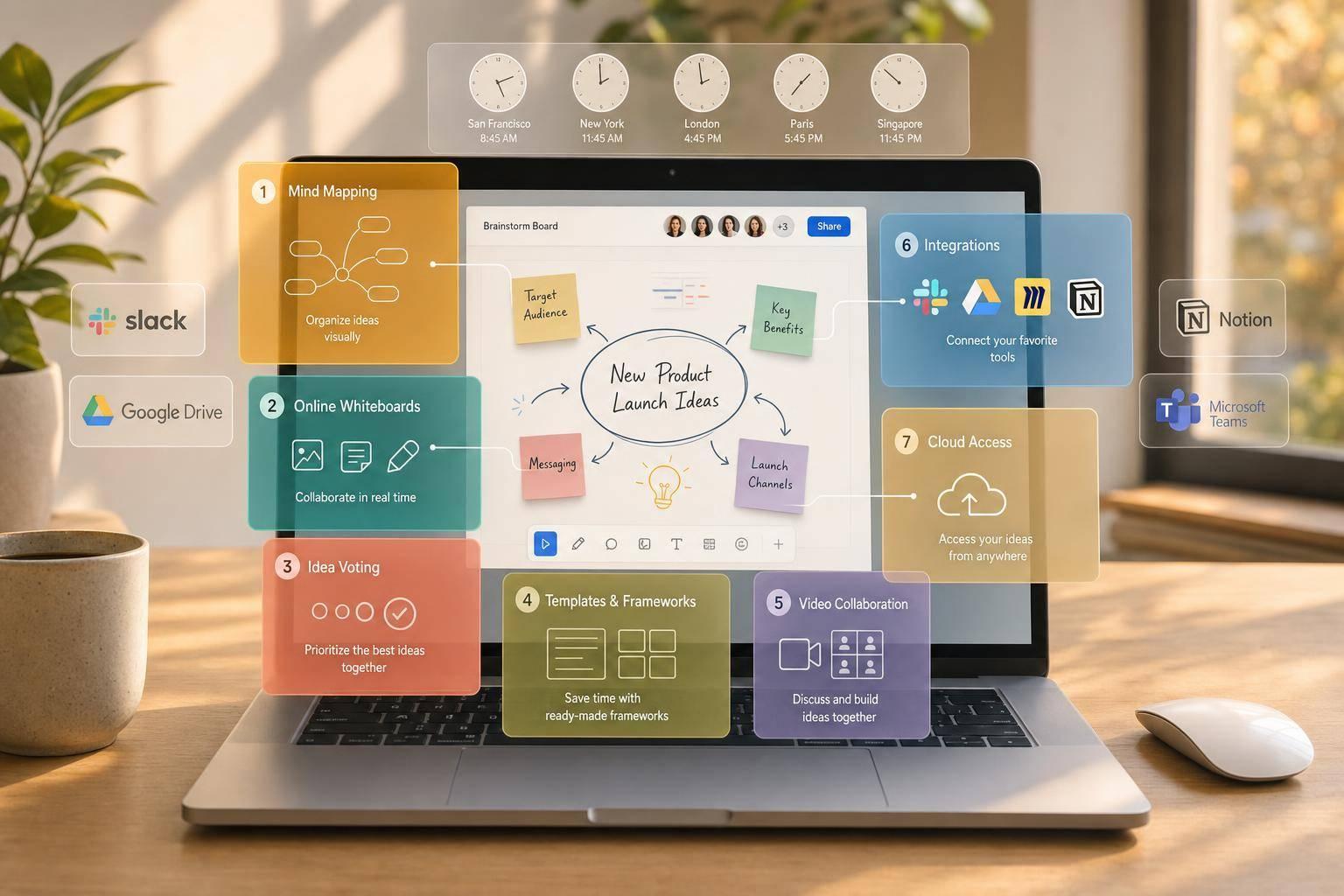
If your team works across the U.S. and South Africa, the best brainstorming tool is the one that supports both live sessions and work done later. With a 6- to 7-hour time gap, live-only tools often leave people out. This is a common challenge when managing offshore staffing across global time zones.
If I had to cut this list down fast, I’d group the 7 tools like this:
- Miro: best all-around for mixed teams
- Mural: best for guided workshops
- FigJam: best for product and design teams
- Stormboard: best for turning ideas into tracked work
- Zoom Whiteboard: best for fast Zoom meeting sessions
- Microsoft Whiteboard: best for Microsoft 365 teams
- MindMeister: best for branch-style mind maps
What I’d look at first:
- Async support like comments, walkthroughs, and version history
- Templates for mind maps, retros, SWOT, and idea sorting
- Session controls like timers, voting, and private idea mode
- Connections to Slack, Teams, Jira, Asana, and Figma
- Boards that stay live after the meeting ends
The pattern is simple: Miro and Mural fit workshop-heavy teams, FigJam fits Figma users, Stormboard fits teams that need action items, and Zoom Whiteboard or Microsoft Whiteboard fit teams that want to stay inside tools they already use. MindMeister is the better pick when a freeform board feels too loose.
The Best Whiteboarding Tools! Comparing InVision Freehand, MURAL, MS Teams Whiteboard, Miro & FigJam
sbb-itb-7512dae
Quick Comparison
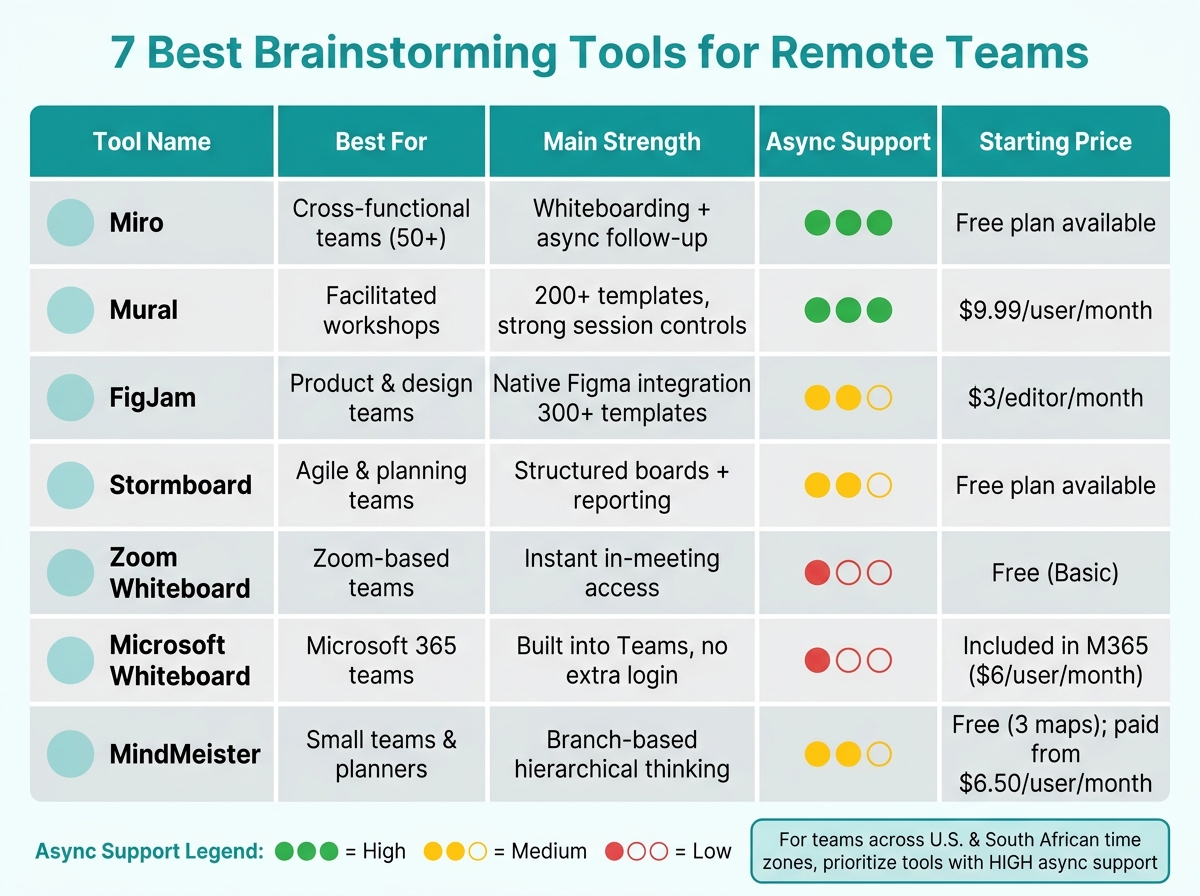
7 Best Brainstorming Tools for Remote Teams Compared
| Tool | Best fit | Main strength | Async support |
|---|---|---|---|
| Miro | Cross-functional teams | Whiteboarding plus follow-up | High |
| Mural | Facilitated workshops | Strong session controls | High |
| FigJam | Product/design teams | Close tie to Figma | Medium |
| Stormboard | Agile and planning teams | Structured boards and reporting | Medium |
| Zoom Whiteboard | Zoom-based teams | Starts fast in meetings | Medium |
| Microsoft Whiteboard | Microsoft 365 teams | Built into Teams | Medium |
| MindMeister | Small teams, planners | Branch-based thinking | Medium |
My main takeaway: don’t pick based only on the live session. Pick the tool your team can still use 24 to 48 hours later, when offshore teammates review the board, vote, comment, and move ideas into tasks.
What Makes a Good Brainstorming Tool for Remote Teams?
Not every whiteboard app works well for distributed teams. The best ones help people work together live, make async input easy, cut down on meeting drag, and keep decisions visible after the call ends. These are the main things to look at when comparing the seven tools below.
Real-Time and Asynchronous Collaboration
Remote teams rarely have everyone online at once. A good brainstorming tool should make live collaboration feel smooth, with things like cursor tracking and audio chat. But that’s only half the job.
It should also support async work through comments, @-mentions, and recorded walkthroughs, so people can jump in later without feeling out of the loop.
Templates for Common Brainstorming Methods
Starting with a blank canvas can slow a team down. Good tools give you ready-made frameworks for common methods, including mind maps, SWOT analysis, affinity mapping, Crazy 8s, retrospectives, and SCAMPER.
That way, teams can spend less time setting things up and more time thinking through ideas.
Facilitation Features for Structured Sessions
Live sessions need some structure, or they can drift fast. Built-in timers, anonymous voting, and private ideation modes help keep the session moving and give quieter team members room to contribute.
Anonymous voting matters for another reason too: it can stop louder voices from steering the whole meeting. For bigger groups, breakout features and facilitator controls make it easier to guide the discussion and keep participation more balanced.
Integrations With Everyday Remote Work Tools
If a brainstorming tool doesn’t connect with the rest of your stack, it adds busywork. Look for native integrations with Slack, Microsoft Teams, Jira, Asana, Trello, and Figma.
The goal is simple: move ideas from the whiteboard into actual tasks without copying everything over by hand.
Persistent Boards and Documentation
Digital boards keep the work alive after the session ends. That helps teams spread across time zones, since offshore teammates can see what was decided without sitting through the same discussion again.
The best tools auto-save everything, include version history, and let teams export sessions into reports or turn sticky notes into project tasks. With those basics in place, the next section looks at how each tool stacks up directly.
1. Miro
Miro is a strong all-purpose pick for remote teams that need live collaboration and async review in the same place. At the center of the product is an infinite canvas, which gives teams plenty of room to map ideas without running into space limits.
Brainstorming format
Miro supports a range of common brainstorming methods, including mind maps, affinity diagrams, SWOT, SCAMPER, and brainwriting. Miro AI can also help sort notes, sum up themes, and suggest new ideas.
Asynchronous collaboration
For distributed teams, Talktrack gives facilitators a way to record a video walkthrough so teammates can review the context and add input on their own time. Version history and threaded comments also make the review process easier to follow after the session ends.
Workshop facilitation features
Built-in timers, breakout frames, anonymous voting, and Stickies Capture help remote sessions stay organized and give each team member space to contribute. These workshop features also make it easier to get teams up to speed fast and run structured sessions.
Integration ecosystem
Miro connects with Slack, Zoom, Microsoft Teams, Jira, Asana, Figma, and Google Drive. That kind of coverage makes it a strong default option for teams that want one board for workshops, planning, and follow-up.
Miro offers a free plan, paid tiers, and custom pricing.
2. Mural
Mural is built for facilitated workshops and design thinking sessions. It’s a strong fit when you need structure, not just a blank canvas.
Brainstorming format
Its template library covers 200+ use cases. That includes 6-3-5 brainwriting, reverse brainstorming, mind mapping, affinity clustering, retrospectives, and Double Diamond.
Asynchronous collaboration
Mural also works well for teams that can’t meet live. The Async Brainstorming template walks teams through step-by-step tasks, like sketching mockups and grouping ideas over a set time frame. People can leave comments, add sticky notes, and come back later to add more ideas without being online at the same time. Boards stay persistent, which makes later review much easier.
Workshop facilitation features
Mural includes facilitation tools like Summon, Private Mode, and a Laser Pointer. Anonymous voting and a built-in timer help keep sessions on track and cut down on bias.
Integration ecosystem
Mural connects with Microsoft Teams, Zoom, Slack, Google Workspace, Jira, Confluence, Azure DevOps, and Webex. It also supports 130+ apps in total.
Mural offers a free plan, paid tiers starting at $9.99/user/month billed annually, and custom enterprise pricing.
3. FigJam
FigJam is Figma’s built-in whiteboard for teams that want fast brainstorming without leaving the Figma workflow. If your team already designs in Figma, that’s a big plus. Ideas stay close to the actual design work instead of getting split across tools.
Brainstorming format
FigJam works well for mind mapping, affinity mapping, sprint retrospectives, and quick idea sessions like Crazy 8s. The canvas gives you sticky notes, shapes, connectors, and sketching tools, so it feels easy to jump in and start mapping ideas.
Its template library includes 300+ ready-made options, from customer journey maps to reverse brainstorming flows. FigJam AI can also create custom templates, diagrams, and visuals from short text prompts.
Asynchronous collaboration
One of FigJam’s best parts shows up after the live workshop ends. Distributed teams can add comments, reactions, and votes on their own time, which helps keep input moving across time zones.
There’s also less friction for outside guests. External stakeholders can join for 24 hours with no login required. And if someone wants to work alone or from a tablet, FigJam has an iPad app for solo brainstorming and mobile collaboration.
Workshop facilitation features
FigJam comes with built-in tools that make sessions easier to run, including timers, voting, stamps, and emotes. Spotlight mode lets the facilitator pull everyone’s view to one part of the board, which is handy when a workshop starts to sprawl. Sections and Pages also help keep larger sessions organized.
FigJam AI can help with the cleanup too. It can sort sticky notes into themes and summarize action items after a session.
Integration ecosystem
Once the board is full of ideas, FigJam makes it easier to turn those ideas into next steps. Native Figma embeds keep brainstorming and design work in one place.
It also connects with tools like:
- Asana
- Jira
- GitHub
That means teams can turn brainstormed sticky notes into tasks or tickets. FigJam also supports direct imports from Google Jamboard, Miro, Mural, and Lucid.
FigJam’s free plan includes 3 files and unlimited collaborators. Paid plans start at $3/editor/month billed annually or $5/editor/month billed monthly.
4. Stormboard
Stormboard is built for teams that want more structure than a freeform whiteboard. Instead of tossing ideas onto an open canvas and sorting them out later, teams work inside clearly defined sections. That makes Stormboard a good fit when brainstorming needs to turn into documented next steps without jumping to another tool.
Brainstorming format
At the core of Stormboard are digital sticky notes. These notes can hold text, images, video, files, and whiteboard sketches, all grouped inside set sections. If a topic starts getting too big, teams can use Substorms – nested cards that break one big discussion into smaller threads.
Stormboard also comes with a library of 250+ templates. These cover common team workflows like Agile retrospectives, Kanban boards, SWOT analysis, and project planning.
Asynchronous collaboration
Stormboard works well for distributed teams because Storms stay live all day and night. Its Activity Tab shows offline changes, which helps teammates in different time zones see what changed and catch the context they missed.
Task tracking is built right into the board too. You can assign any sticky note to an owner and add a due date, which keeps ideas tied to follow-up work instead of letting them drift.
Workshop facilitation features
Stormboard includes a few tools that help meetings stay on track. Magnetic Sections can sort ideas by vote count, date, or story points automatically. On Enterprise plans, the Spotlight feature moves everyone’s cursor focus to one section at a time, which is handy when a workshop starts to sprawl.
Boards can also be exported to:
- Word
- Excel
- PowerPoint
Integration ecosystem
Stormboard supports bi-directional sync with Jira, Azure DevOps, and Rally. It also works with Microsoft Teams as a channel tab and can send updates through a built-in bot. Beyond that, it connects with Zoom, Webex, and Slack.
Pricing starts at $0/month for basic use. Paid Business and Enterprise tiers add advanced reporting, Substorms, Spotlight, and added security features.
5. Zoom Whiteboard
If your team already runs on Zoom, Zoom Whiteboard keeps brainstorming in that same lane. You can open it right from a Zoom meeting, and everyone in the call gets access to work together without needing extra links or another sign-in.
Brainstorming format
The canvas gives teams a big shared space for sticky notes, shapes, drawing, and media. On top of that, Zoom AI Companion can group sticky notes by theme or turn a single text prompt into a full mind map.
There’s also a handy feature called Private Mode. It lets people add ideas without showing their names at first, then reveal everything later for group review. That can help cut down on groupthink when ideas are still raw.
Workshop facilitation features
Zoom Whiteboard comes with a countdown timer that goes up to 120 minutes, plus a laser pointer and voting tools. The Follow Me button keeps everyone locked to the presenter’s view, which is useful when the room starts to wander or people end up in different parts of the board.
Hosts can also limit some facilitation tools so only the session owner can use them.
Asynchronous collaboration
The same board can keep working after the meeting ends. Boards stay available, so teammates across time zones can leave threaded comments, @mention coworkers, and keep moving the work forward later on.
Zoom AI Companion can also summarize brainstorming sessions and build a board from a meeting transcript.
Integration ecosystem
Whiteboard Basic is free and includes up to 3 editable boards. Whiteboard Plus adds unlimited boards, AI features, Private Mode, and integrations with Jira, Asana, and Azure DevOps.
6. Microsoft Whiteboard
For teams already using Microsoft 365, Microsoft Whiteboard is an easy fit. It opens right inside Teams meetings, with no extra login step, so people can go from talking to brainstorming with almost no friction. If your team already lives in Microsoft tools, Whiteboard is one of the simplest ways to start a working session fast.
Brainstorming format
Whiteboard gives teams an infinite canvas with sticky notes, text boxes, shapes, and digital inking. One feature that stands out is ink-to-shape. If someone sketches a box, circle, or arrow by hand on a Surface device or iPad, Whiteboard cleans it up into neat geometry automatically. That small touch makes rough ideas look more polished without slowing anyone down.
It also comes with 60+ pre-built templates for things like SWOT analysis, Kanban boards, mind maps, and retrospectives. For teams already in the Microsoft stack, that means they can start dropping ideas onto the board right away instead of jumping between apps.
Asynchronous collaboration
Boards save automatically to OneDrive for Business and stay available through Teams chat history or the standalone Whiteboard app. That matters for distributed teams. Someone in another time zone can open the board later, review what happened, and add sticky notes, reactions, or comments after the live Teams call is over.
You can also open the board from the Teams invite before the meeting starts. So if a session needs a little setup ahead of time, that part is easy.
Workshop facilitation features
Microsoft Copilot can group scattered sticky notes into themes and summarize what’s on the board. When a board starts to get messy, that can save a lot of cleanup time.
Organizers can also switch participants to read-only mode to avoid accidental edits during a presentation. That said, Whiteboard doesn’t include built-in timers or voting tools, so the facilitator has to manage that structure by hand. In practice, that makes it a better match for quick internal sessions than for workshops that need tighter control.
Integration ecosystem
Whiteboard is included with Microsoft 365 subscriptions, and Business Basic starts at $6/user/month. It also works with Microsoft Loop components, which lets live board content sync across Teams chats, Outlook emails, and Word documents.
If you need to share the output outside Microsoft tools, boards can be exported to OneNote or PNG.
If your team needs a more structured mind map than a freeform board, the next tool fits better.
7. MindMeister
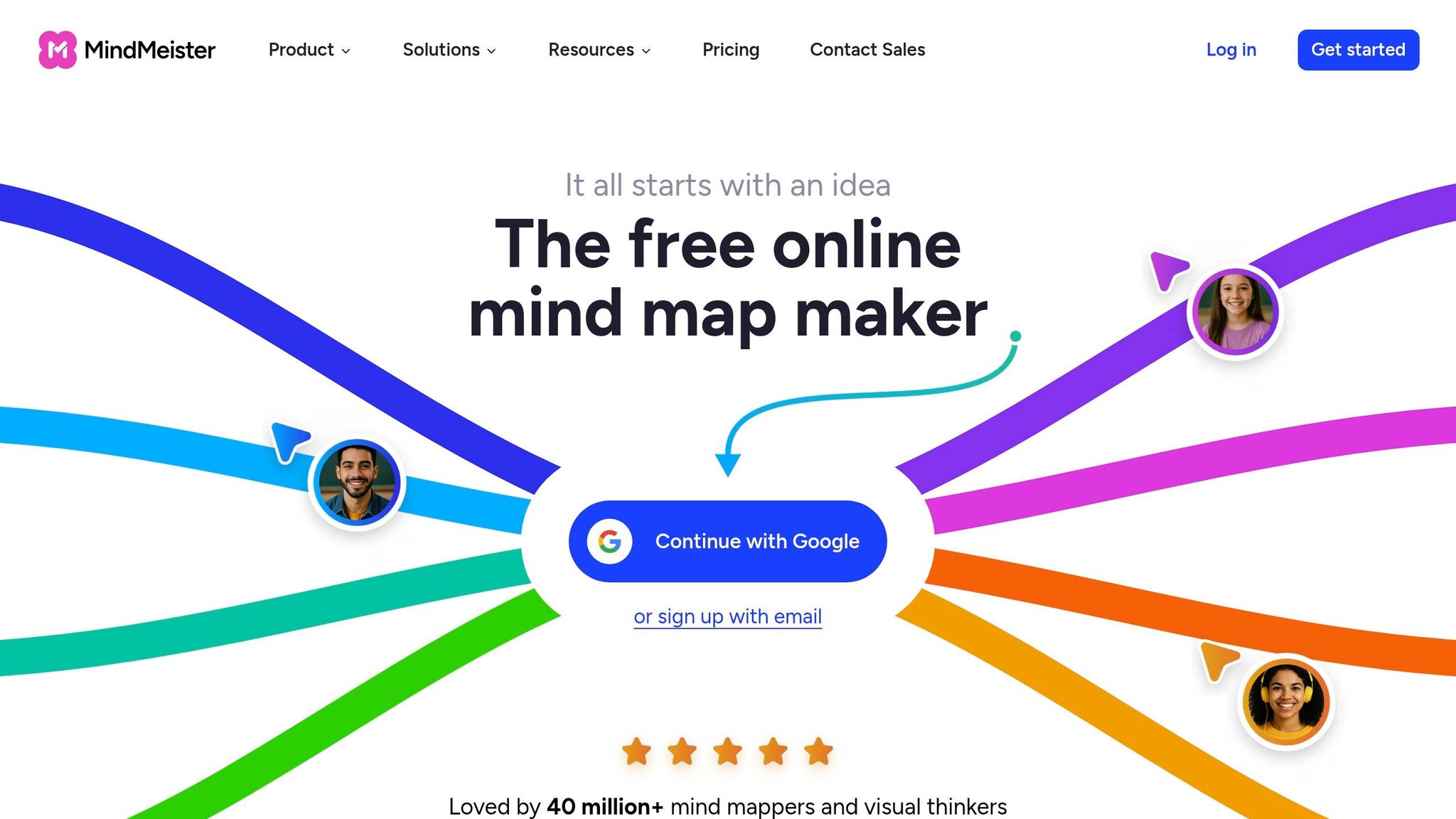
MindMeister works best for remote teams that want a structured, branch-based brainstorm, not a loose whiteboard. It lays ideas out as a hierarchical mind map: one central topic, with branches spreading outward. That makes it easier to spot links between ideas and turn them into clear next steps.
Brainstorming format
Each session begins with a central idea. From there, the team builds outward by adding topics and subtopics. If the discussion shifts, you can drag and drop topics to rearrange the map as your thinking changes. MindMeister also includes AI-assisted brainstorming, which can build a starter map from a text prompt or an uploaded document.
Asynchronous collaboration
That same structure also helps remote teams work across time zones without things getting messy. Comments attach to individual nodes, so feedback stays connected to the right idea even if someone adds it hours later. Version history shows who added what and when, and teams can roll back to an earlier version if needed.
Workshop facilitation features
For live workshops, MindMeister gives facilitators a clean way to guide the group and sort ideas. Presentation Mode turns the map into a slide-style walkthrough. Teams can also use the built-in voting feature to rank ideas during a live session. And Focus Mode hides menus, which helps keep attention on the work in front of the group.
Integration ecosystem
MindMeister connects with MeisterTask, Microsoft Teams, and Google Drive. That means teams can turn branches into tasks with assignees and due dates, and edit maps directly inside Teams.
Pricing starts with a free plan that includes up to 3 mind maps. Paid plans start at $6.50, $10.50, and $15.50 per user per month for Personal, Pro, and Business.
Quick Comparison of All 7 Tools
No single tool works for every team. Some are built for big workshops. Others are better for design sprints, fast whiteboarding, or more structured planning.
The table below compares each option by main use case, best-fit team, integration ecosystem, and async support.
| Tool | Primary Use Case | Best For | Integration Ecosystem | Async Strength |
|---|---|---|---|---|
| Miro | General-purpose visual collaboration | Large cross-functional teams (50+) | 250+ apps (Jira, Slack, Zoom) | High – Talktrack video walkthroughs, persistent boards |
| Mural | Facilitated enterprise workshops | Professional facilitators, large groups | 100+ apps; strong Microsoft 365/Copilot support | High – private mode, async brainstorming templates |
| FigJam | Design-focused ideation | Product and design teams (small to medium) | Figma-native (Asana, Jira, GitHub) | Medium – cursor chat, stamps, reactions |
| Stormboard | Structured, data-driven sessions | Teams that need reporting and analytics | Microsoft Teams, Slack, data exports (CSV, JSON, PDF) | Medium – persistent data, session reports |
| Zoom Whiteboard | In-meeting sketching | Quick, spontaneous syncs | Zoom-native | Low – best for live sessions |
| Microsoft Whiteboard | Suite-based collaboration | Internal Microsoft 365 teams | Deep Microsoft 365 and Teams integration | Low – basic ink and sticky notes |
| MindMeister | Hierarchical mind mapping | Individuals or small structured teams | MeisterTask, Microsoft Office | Medium – comments and voting |
Use this table to cut down your shortlist. The next section gets more specific and maps the tools to different team types.
How to Choose the Right Tool for Your Remote Team
The comparison table above helps cut down the list. From here, the job is simple: pick the tool that fits how your team actually works day to day. That matters even more when people are spread across U.S. and South African time zones.
Product and Design Teams
If your team spends most of its time in Figma, FigJam is usually the best match. It works well for Figma-first teams because ideas stay in the same workspace as the design files. That means less jumping between apps and less risk of fast-moving design work getting scattered.
If you have a larger product team with people from design, product, engineering, and ops, Miro tends to be a better fit. It’s stronger when you need to connect brainstorming to tools like Jira or Azure DevOps.
Workshop-Heavy Teams
Mural makes sense for teams that run repeat workshops with a facilitator and need more structure than a blank whiteboard gives them. If workshops are a regular part of how your team works, Mural’s facilitation toolkit stands out.
Agile and Retrospective Workflows
Stormboard fits agile teams that want retrospectives to lead to clear action items and outputs they can track. If your team runs the same ceremonies again and again and needs to see what happened over time, that structure matters.
Teams Already Using Zoom or Microsoft 365
Sometimes the best option is the one already sitting inside your stack. If speed matters more than deep facilitation features, use the tool built into your workflow.
- Microsoft Whiteboard comes with Microsoft 365 at no extra cost.
- Zoom Whiteboard works inside meetings, so your team doesn’t have to switch apps.
There is a trade-off here. Neither one gives you the same workshop control as Miro or Mural. But for live whiteboarding during meetings, they’re often more than enough. If your team also needs async follow-through across time zones, the next section matters more.
Marketing, Strategy, and Planning Teams
MindMeister fits teams that plan campaigns, content, and strategy with branching maps. For marketing teams laying out campaign plans or content pillars, that structure can be a big help without feeling rigid.
When to Use More Than One Tool
A lot of remote teams don’t stick with just one platform. One common setup is to use Miro or Mural for live workshops, then move ideas into Stormboard or MindMeister for follow-up and documentation.
The real test isn’t how the board feels during the live session. It’s whether people can still use it after the meeting ends. That’s the part that makes handoffs and offshore collaboration much easier.
How to Include Offshore Team Members in Brainstorming Sessions
Once you pick a tool, the next piece is the process. That’s what decides whether offshore teammates can take part in a way that feels useful. In practice, offshore brainstorming tends to work best when the board stays open after the meeting. The workflow matters more than the tool.
Use Persistent Boards Across Time Zones
Persistent boards give offshore teammates time to catch up on what happened in the live session. They can review notes, comments, version history, and links without needing to be in the room at the same moment.
Once the board stays available, people can add input on their own schedule. That makes a big difference across time zones, where one person’s afternoon is someone else’s early morning.
Use Comments, Notes, and Voting for Async Input
Comments, sticky notes, and simple voting features make async participation much easier. Use @mentions for handoffs so offshore teammates can respond when their workday starts, not when the live meeting happens.
It also helps to leave voting open for 24 hours. That gives offshore teammates a fair shot to weigh in after the session ends, instead of missing the decision window.
The next move is to turn the brainstorm into a process your team can use again and again across countries.
Build Workflows That Support Cross-Border Teams
A simple setup often works best:
- Run the session live
- Record a short video walkthrough
- Leave the board open for 48 hours
This kind of workflow fits Talently teams well, where South African talent in roles like design, marketing, customer success, and business development can review boards and add input outside North American hours.
Conclusion
There’s no single best brainstorming tool for every remote team. The right pick depends on how your team works: live workshops, async input, or task follow-up after the session.
If your work happens in Figma, FigJam cuts friction by keeping design and ideation in one place. If you run bigger workshops, Miro or Mural give you the structure and facilitation features needed to keep things on track. For agile teams that need sticky notes to turn into reports and action items, Stormboard is a strong option. If your team already works inside Microsoft 365 or Zoom, Microsoft Whiteboard or Zoom Whiteboard will feel like the easiest fit. And if your team thinks in hierarchies instead of open canvases, MindMeister matches that style well.
Pick one tool and test it in a real session. Then stick with the one your team uses best. For teams working across U.S. and South African time zones, it helps to choose a tool that keeps work moving after the meeting ends.
FAQs
Which tool is best for async brainstorming?
Several tools fit asynchronous brainstorming well.
Miro supports async collaboration with comments, Talktrack video recordings, and flexible boards that work across time zones. Mural is built for both live and async participation, with sticky notes and mapping tools for feedback.
Lucidspark offers an infinite canvas for sorting ideas. Trello and GroupMap also support extended, async contributions.
How should I choose between whiteboards and mind maps?
Choose a digital whiteboard if you want a flexible, freeform space for brainstorming, live collaboration, and visual elements like sticky notes. It’s a good fit for workshops, design thinking sessions, and large-group idea generation.
Choose mind maps when you need hierarchy and logical structure from the start. They work better when you want to track specific ideas and turn early thoughts into organized plans.
What’s the best setup for teams across U.S. and South Africa time zones?
For teams across the U.S. and South Africa, asynchronous collaboration tends to work best when time zones don’t line up. Tools like Mural and Miro make that much easier. People can jump into shared whiteboards when their schedule allows, add ideas, react to notes, and keep work moving without needing everyone in the same room at the same time.
For live sessions, features like private mode, built-in timers, and voting help remote teams stay focused and involved.
Related Blog Posts
Ready to build your dream team?
Book a free consultation and get your first candidate shortlist within 48 hours.
No upfront fee • Only pay if you hire