
How Cloud Storage Improves Remote Work Efficiency
 19 min read

Cloud storage is the backbone of remote work efficiency. It allows teams to access files from anywhere, collaborate in real time, and maintain strong data security – all while saving costs and scaling with your business. Here’s why it matters:
- Access Anytime, Anywhere: Files are available 24/7 from any device, eliminating delays and reliance on physical storage.
- Real-Time Collaboration: Multiple users can edit documents simultaneously with tools like Google Workspace or Microsoft 365, avoiding version conflicts.
- Enhanced Security: Features like encryption, multi-factor authentication, and automated backups protect your data better than traditional systems.
- Cost-Effective and Scalable: Pay-as-you-go pricing and flexible storage options grow with your team while reducing upfront hardware costs.
- Technology for offshore teams: Centralized storage ensures seamless workflows across time zones and geographies.
Switching to cloud storage simplifies teamwork, boosts productivity, and keeps your data safe. Whether you’re managing local or offshore teams, it’s the smarter choice for modern businesses.
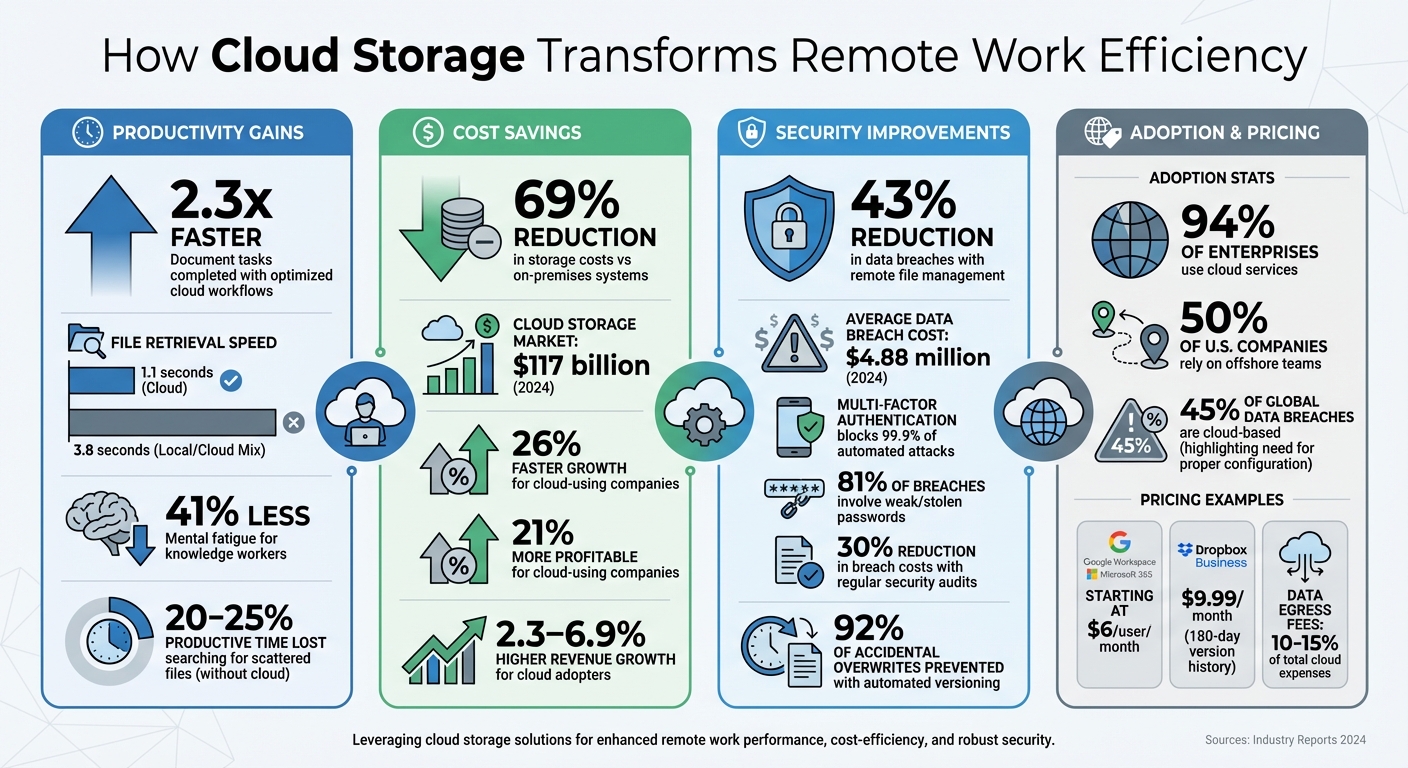
Cloud Storage Benefits for Remote Work: Key Statistics and Savings
1. Access Data from Anywhere, Anytime
One of the most practical benefits of cloud storage is universal accessibility. Your team can log in and retrieve files from any device with an internet connection. For example, your marketing manager in New York might access a campaign brief at 9:00 AM ET, while your graphic designer in Los Angeles reviews the same document at 6:00 AM PT. This eliminates the hassle of file transfer delays and keeps everyone on the same page.
You can even start working on one device and pick up right where you left off on another, with every edit syncing in real time. This level of accessibility doesn’t just enable flexible work – it also minimizes reliance on outdated physical storage systems.
1.1 Say Goodbye to Physical Storage
Cloud storage removes the need for bulky physical storage devices, cutting down on risks like local data loss. Files are stored securely on remote servers, ensuring they’re safe from hardware malfunctions or accidental damage.
“Cloud storage services like Dropbox can be a smart way for remote workers to manage files, share data, and work more seamlessly as part of a distributed team.” – Remote.co
This flexibility makes it easier for teams to collaborate, even when they’re spread across different locations or time zones. This is a core advantage of offshore staffing models that leverage global talent.
1.2 Enable Flexible Work Schedules
With centralized access, collaboration becomes seamless – even across time zones. Files are available 24/7, so a customer success and business development representatives wrapping up their day in Chicago can upload notes that a manager in Miami reviews first thing the next morning. This kind of asynchronous workflow keeps projects moving along smoothly, no matter when or where team members are working.
sbb-itb-7512dae
2. Enable Real-Time Collaboration for Remote Teams
Cloud storage doesn’t just make files accessible – it completely changes how remote teams collaborate, offering real-time interaction that keeps everyone on the same page while maintaining remote team focus.
With cloud storage, simultaneous editing becomes a game-changer. Imagine your executive assistant in Boston updating a client presentation while your marketing specialist in Denver adds new slides at the same time. The changes sync instantly, eliminating the confusion of multiple file versions and saving valuable time.
Centralized feedback is another bonus. Instead of juggling endless email threads or chat messages, team members can leave comments directly on specific sections – whether it’s a paragraph, image, or spreadsheet cell. Features like @mentions make it even easier. Tag a colleague, and they’ll get a notification with a direct link to the exact spot in the document where their input is needed. This keeps discussions focused and tied directly to the work.
2.1 Tools for Collaborative Workflows
Google Workspace and Microsoft 365 are two standout options for real-time collaboration, both starting at $6 per user per month. Google Workspace apps allow up to 100 people to edit a single file simultaneously, making it ideal for larger teams working on shared projects. Microsoft 365, on the other hand, integrates seamlessly with Teams, so your customer success team can discuss issues and update shared documents without switching between apps.
Another option is Dropbox Business, which starts at $9.99 per month. It offers extended version history (up to 180 days), which is perfect for recovering earlier versions of complex projects like designs or videos. Plus, features like color-coded cursors show exactly where each teammate is working in real time, avoiding the chaos of overlapping edits.
2.2 Simplify Feedback and Approvals
Google Docs’ “Suggesting” mode is a lifesaver for feedback. It lets reviewers propose changes without permanently altering the original text. For instance, your business development manager can suggest edits to a proposal, and the document owner can review and decide whether to accept or reject each change. This creates a smooth approval process without the headache of managing multiple file versions.
Granular permissions add an extra layer of control. You can assign “view-only” access to most team members while giving “edit” permissions to active contributors. This reduces the risk of accidental changes while keeping everyone informed. For example, you might set files to “commenter” access so stakeholders can leave feedback without making unintended edits. It’s a simple way to balance collaboration with control.
3. Increase Productivity and Efficiency with Cloud Storage
Cloud storage has become a game-changer for remote work, cutting down the time spent searching for files and managing backups. With optimized cloud workflows, teams can complete document-based tasks 2.3 times faster than those using a mix of local and cloud storage systems. File retrieval speeds have also improved dramatically, dropping from 3.8 seconds to just 1.1 seconds when cloud systems are properly integrated. Beyond speed, knowledge workers reported experiencing 41% less mental fatigue when using automated cloud storage solutions. This isn’t just about getting more done – it’s about making work less stressful and more efficient.
3.1 Reduce Time Spent Searching for Files
One of the biggest perks of cloud storage is its advanced search capabilities, which make finding files faster and easier. Instead of sifting through endless folders, you can use server-side search tools with filters for file type, modification date, or owner to pinpoint exactly what you need. Just type in a keyword, and every relevant document across your workspace appears instantly.
Modern tools like OneDrive‘s Files On-Demand take this convenience even further. They show remote files as placeholders in your local file explorer, so you can access them instantly without downloading first. Native desktop clients can retrieve files in about 0.9 seconds, compared to the slower 5.7 seconds with browser-based uploads.
A well-organized file structure also plays a key role in searchability. Using a consistent naming convention like ISO date-first (YYYY-MM-DD) ensures files are automatically sorted chronologically. For example, a file named “2026-04-02_ClientProposal_Acme.pdf” will always appear in the right order, no matter the device. Pairing cloud storage with technology for offshore staffing and project management tools can further streamline workflows by keeping files and tasks in context.
“When your shared drive looks like a rummage sale, every file retrieval becomes a small tax on your team’s attention and time.” – Sarah Chen, Marketing Tech Editor
Efficient search tools not only save time but also keep remote teams focused and productive. And while finding files quickly is crucial, automated backups ensure that the work stays safe and uninterrupted.
3.2 Automate Data Backups
Relying on manual backups can be risky, as they leave room for human error or hardware failure. Automated cloud backups eliminate these risks, keeping data secure without extra effort.
Incremental backups are especially effective. Instead of re-uploading entire files, the system saves only the changes made since the last update. This approach reduces upload times and storage space while ensuring everything stays protected. Automated synchronization and versioning can prevent 92% of accidental overwrites, so no one accidentally deletes the final version of a critical document.
Most cloud platforms offer built-in version history, though the retention period varies. Google Drive and Microsoft OneDrive (both starting at $6 per user per month) typically provide 30 days of version history, while Dropbox Business and pCloud Business extend that to 180 days. Using version history eliminates the need for cluttered file names like “Final_v2” or “Final_FINAL”, making workspace management cleaner and restoring files easier.
For organizations, aiming for a Recovery Time Objective (RTO) of no more than four hours ensures teams can quickly resume work after disruptions. Scheduling large backups during off-peak hours keeps internet bandwidth free for collaboration during the workday. Regularly testing restoration processes is also essential to guarantee reliable data recovery.
4. Improve Data Security and Compliance
When it comes to cloud storage, security is often the biggest concern for businesses. However, modern platforms have transformed this challenge into one of their strongest advantages. By 2024, the average cost of a data breach hit $4.88 million. Yet, adopting remote file management solutions can reduce data breaches by as much as 43%. With enterprise-grade protection and advanced security measures, cloud providers have made their platforms a safer choice, especially for remote work environments.
4.1 Encryption and Access Management
Cloud providers use robust encryption methods to safeguard your data. Files are secured with TLS protocols during transit and 256-bit AES encryption at rest, ensuring that data remains inaccessible without the correct decryption key. Even if someone gains physical access to a server, encrypted files stay protected.
Strict access controls add another layer of defense. Multi-factor authentication (MFA) is a must, as it blocks 99.9% of automated cyber-attacks. Considering that 81% of breaches involve weak or stolen passwords, MFA isn’t just helpful – it’s essential. Role-based access management assigns permissions (like Viewer, Editor, or Admin) to limit exposure, following the principle of least privilege. For external sharing, features like password protection, expiration dates, and disabling downloads give you control over shared files, even outside your workspace.
“Cloud storage is secure when you handle the other side of the coin. The provider protects the infrastructure… while your team manages access, configurations, and everyday usage.” – Team Cortavo
Routine security audits are another critical step. Companies that conduct regular reviews can cut data breach costs by up to 30%. For instance, quarterly checks of user permissions can help identify inactive accounts or former employees who still have access, reducing vulnerabilities.
4.2 Compliance with Regulatory Standards
For teams managing sensitive data, compliance with regulations is non-negotiable. Leading cloud providers hold certifications like SOC 2 Type II and offer HIPAA-compliant solutions, ensuring they meet the strict requirements for managing personal and medical data.
Healthcare organizations, for example, need HIPAA-compliant storage with signed Business Associate Agreements (BAAs). These are typically available on business or enterprise plans starting at around $15 per user per month. Meanwhile, companies working with EU customer data must follow GDPR rules, which include consent management and data residency controls.
The shared responsibility model is key here: providers secure the infrastructure, while your team handles access and usage. Tools like detailed audit trails can track who accessed, edited, or downloaded files – critical for compliance reviews and spotting suspicious activity. Integrating cloud storage with identity platforms like Okta can also automate user provisioning, ensuring that when someone leaves your team, their access is immediately revoked across all systems.
While cloud-based attacks now account for over 45% of global data breaches, proper configuration and access management can make cloud storage even more secure than traditional on-premise systems. The real takeaway? Security isn’t a one-time task – it’s an ongoing process that requires consistent attention and updates.
5. Cost Savings and Scalability for Growing Teams
Cloud storage doesn’t just improve productivity and security – it’s also a smart financial move, especially for growing teams. Instead of sinking money into expensive hardware upfront, you shift to predictable monthly expenses. This approach can reduce storage costs by as much as 69% compared to on-premises systems. Combining these savings with offshore staffing strategies can further optimize your operational budget. It’s no wonder the cloud storage market reached about $117 billion in 2024, with businesses taking note. Companies using cloud solutions grow 26% faster and are 21% more profitable than those sticking to traditional setups.
With cloud providers handling maintenance, updates, and security, your budget can focus on driving business growth. Many platforms even bundle tools like email, calendars, and chat, cutting out the need for separate app subscriptions. Plus, strategic data management – like moving older files to archival tiers such as “Coldline” or “Archive” – can trim storage costs by up to 90%.
5.1 Flexible Pricing Models
One of the biggest perks of cloud storage is its pay-as-you-go pricing. You’re only charged for what you actually use. For starters, Google Drive offers a free 15GB plan, letting you test workflows without spending a dime. As your needs grow, you can scale up gradually. For instance, DigitalOcean Spaces starts at just $5 per month (covering 250 GiB storage and 1 TiB transfer), with archival storage available for as little as $0.007 per GiB per month.
To manage costs effectively, align your plan with actual usage. If your team consistently uses less than 70% of your allocated storage, consider downgrading to save money. Start small and expand as needed – you can always add capacity later. However, keep an eye out for hidden costs like data egress fees (charges for transferring data out), which can make up 10–15% of total cloud expenses.
5.2 Support Team Growth
For growing teams, scalability is a game-changer. Whether you’re onboarding your fifth or five-hundredth employee, adding users to your cloud plan is seamless. New team members – whether in New York, remote in Montana, or offshore staffing – gain instant access to the same files and tools as the rest of the team.
Cloud storage adapts to fluctuating demands without interruptions. During slower periods, you can scale back just as easily. Businesses that embrace cloud technology typically see revenue growth that’s 2.3% to 6.9% higher than those that don’t. This flexibility ensures your storage solution grows alongside your team, never holding you back from achieving your goals.
6. Integrate Cloud Storage with Offshore Teams
With 50% of U.S. companies now relying on offshore teams to maintain their competitive edge, cloud storage has become a critical tool rather than an optional upgrade. Just as it enhances collaboration among onshore teams, cloud storage offers offshore teams a centralized and accessible workspace. Pairing cloud platforms with staffing solutions like Talently creates workflows that operate effortlessly across borders. Whether your offshore team handles customer success, graphic design, or business development, they need the same instant access to files and resources as your in-house staff.
The big win here? Cloud storage erases geographical and technical barriers. Imagine your South African team member accessing the same project file at 9:00 AM Cape Town time that your New York manager was working on at midnight EST. No VPN delays, no waiting for email attachments, and no versioning headaches. This kind of integration highlights how cloud storage drives efficiency in remote work environments.
6.1 Simplify Offshore Team Integration
Getting offshore employees up and running quickly starts with giving them immediate access to essential tools and resources. Cloud storage provides a centralized single source of truth for company SOPs, training materials, HR policies, and project files. For example, when Talently connects you with a new graphic designer or executive assistant, that person can access shared drives on their very first day – no delays waiting for IT to configure access or ship hardware.
Consider this: employees lose 20–25% of their productive time searching for scattered information across emails and personal drives. By organizing everything in shared cloud folders with clear naming conventions (e.g., “2026-04-02_Project-Update”), you can drastically cut down on wasted time. Use role-based access controls to ensure that offshore team members, like a customer success manager, see only what’s relevant to their role – nothing more, nothing less. And don’t forget: multi-factor authentication is a must for securing international access.
For onboarding, keep it simple. Create a pinned reference document in your shared drive outlining folder structures and file naming conventions. Then, assign appropriate permissions based on each new hire’s role. This allows them to start contributing to real projects within hours instead of days.
6.2 Cloud-Based vs. Local File Storage Workflows
The benefits of cloud-based storage become especially clear when managing offshore teams. Here’s how it stacks up against local file storage:
| Feature | Cloud-Based Workflow | Local File Storage Workflow |
|---|---|---|
| Cross-Border Access | Instant access from anywhere with an internet connection | Limited to specific locations or hardware |
| Time Zone Collaboration | Asynchronous editing with automatic syncing across regions | Sequential editing requiring manual file transfers |
| International Security | Encrypted access logs track activity globally | Relies on physical security at each location |
| Offshore Scalability | Add team members instantly without needing hardware | Requires hardware shipping and configuration |
With 94% of enterprises already using cloud services to streamline their operations, moving to cloud-based workflows is no longer experimental – it’s the norm. Cloud platforms automatically track edits, so you always know who made changes and when. For companies working with Talently’s offshore professionals, this ensures that your South African team members work with the same level of efficiency and security as your onshore staff. No compromises, no cumbersome workarounds – just seamless productivity.
Conclusion: How to Adopt Cloud Storage for Remote Teams
Cloud storage simplifies remote work by making file access seamless, improving collaboration, and keeping data secure. Whether it’s solving version control headaches or ensuring your team in Cape Town has the same instant access as your New York office, the advantages are obvious: faster teamwork, better security, and flexibility for growth. The real question isn’t whether you should adopt cloud storage – it’s how to do it effectively. Here’s a five-step plan to get started.
7.1 5-Step Cloud Storage Adoption Plan
Switching to cloud storage doesn’t have to feel like a massive undertaking. Follow this straightforward plan to move from planning to implementation:
1. Assess Your Team’s Needs
Figure out what your team requires most. Do you need integration with tools like Google Docs, robust file-sharing capabilities for design projects, or top-tier encryption for compliance? Think about storage capacity (e.g., 30 GB pooled vs. 1 TB per user), industry regulations like HIPAA or GDPR, and the software your team uses daily.
2. Choose Your Provider
Pick a provider that matches your needs. For instance, Google Drive (Workspace) starts at $6/user/month with 30 GB of pooled storage and a 30-day version history – great for teams already using Google tools. Dropbox Business offers 2 TB of storage and a 180-day version history, making it ideal for design-heavy workflows. For industries that require strong security, Tresorit Business offers end-to-end encryption at $14/user/month.
3. Train Your Team on Standards
Create a guide for folder organization and naming conventions. A consistent system, like using ISO date-first formats, ensures clarity. Include this guide in your onboarding materials so new hires – whether local or remote hires through platforms like Talently – start with good habits.
4. Migrate Your Data
Centralize all files from personal drives or physical storage into shared drives. This keeps data within the company, even if employees leave. Start with active projects before moving archived files. Use native tools to preserve metadata and folder structures during the migration.
5. Monitor and Maintain
Schedule quarterly cleanups to archive old projects, eliminate duplicate files, and adjust permissions for former team members. Automate folder processes to sort incoming files or notify the team about updates in key folders. Ensure you have rapid data recovery systems in place to handle disruptions without downtime.
By following these steps, you’ll maximize the benefits of cloud storage, from smoother collaboration to stronger data security.
7.2 Cloud Storage and Remote Work: Final Thoughts
“Cloud storage organization is not a one-time project. It’s an ongoing operational discipline that compounds in value the longer a team maintains it.”
- Sarah Chen, Marketing Tech Editor, BestCloudStorageGuide
The everyday benefits of cloud storage are where it truly shines: your marketing team in Dallas can collaborate effortlessly with your customer success manager in Johannesburg, your new assistant can access updated SOPs on their first day, and no one wastes time hunting for files buried in email threads. Whether you’re expanding your remote team or integrating offshore talent through platforms like Talently, cloud storage eliminates the barriers that hold distributed teams back.
Start small – something as simple as documenting naming conventions can make an immediate difference. You’ll see the payoff quickly, as your team stops asking, “Where’s that file?” and starts asking, “What’s next?”
FAQs
How do we pick the right cloud storage plan for our team?
To select the best cloud storage plan, start by assessing your team’s workflow, size, and storage requirements. A well-organized folder structure, clear naming conventions, and proper permission settings can go a long way in boosting efficiency. Consider platforms like Microsoft OneDrive, which starts at $6.99 per month for 1TB of storage. Make sure the plan you choose provides enough space, strong security measures, and easy-to-use collaboration tools to meet your team’s needs.
How can we keep files secure when sharing with remote and offshore staff?
To keep file sharing safe when working with remote or offshore staff, start by using access-based controls to limit who can view or edit files. A unified cloud platform with strong built-in security features is a must.
Avoid risky habits like password sharing. Instead, establish clear onboarding and offboarding procedures to manage user access effectively. Keeping audit trails is another critical step – these logs help you monitor activity and spot any unusual behavior.
Finally, choose cloud storage solutions that offer encryption and geographic controls. These features add an extra layer of protection for sensitive data, ensuring it remains secure no matter where your team is located.
What’s the easiest way to migrate our existing files to the cloud without downtime?
The simplest approach is to implement an incremental sync strategy while keeping both systems running side by side. Begin by performing a bulk data transfer in the background to minimize disruptions. After that, set up daily incremental syncs to track and update any changes made during the migration. This way, the new cloud system remains current, and your team can continue accessing files without interruptions.
Related Blog Posts
Ready to build your dream team?
Book a free consultation and get your first candidate shortlist within 48 hours.
No upfront fee • Only pay if you hire